1. Count captured moments, not exported frames
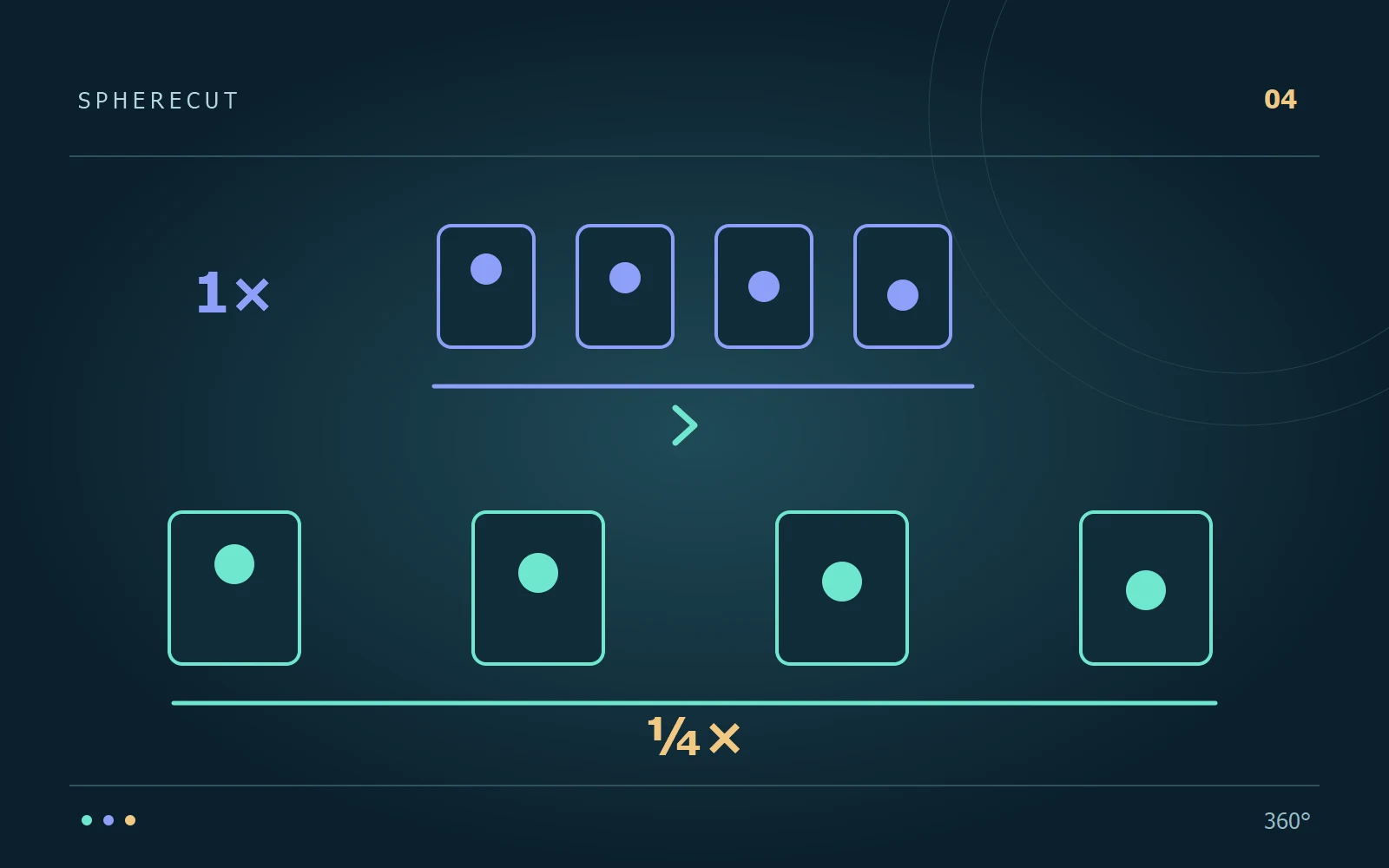
At half speed, one second of action lasts two seconds. At quarter speed it lasts four. A 30 fps source slowed to one quarter supplies only 7.5 captured moments per output second; 60 fps supplies 15, and 120 fps supplies 30. These are arithmetic examples, not promises that every camera offers each frame rate in every 360° mode. Check the mode you actually recorded.
2. Do not expect a higher export rate to invent motion
Saving a slow sequence at a higher output frame rate does not by itself add new captured positions. SphereCut's slow-motion workflow should not be mistaken for AI frame generation. Repeated or resampled frames can still look juddery during fast movement. Before applying a strong slowdown, compare half speed and quarter speed on the same short action. Pick the version whose movement is clear, rather than the lowest number available.
3. Place the section around a recognizable event
Start slightly before the action reaches its most interesting point and end after it resolves. For example, allow the paddle to approach the water, slow the splash and return to normal speed as the stroke finishes. Two source seconds at quarter speed become eight seconds of viewing time. Include that expansion when planning your film's length; a small source interval can occupy a large part of a short final video.
4. Use several sections deliberately
SphereCut supports separate speed sections. Create one, check its visible start and end, then choose a different interval for the next. Leave a normal-speed gap when the viewer needs to understand the rhythm. If a slowdown no longer helps, select its existing section and remove it, or use Undo to return to the previous edit. You do not need to rebuild the project merely to remove a speed change.
5. Recheck effects and sound after changing speed
A camera effect and a slowdown describe different parts of the edit. An effect can remain attached to the same source action while that action lasts longer in the finished film. Review the combination across both boundaries, not just at the midpoint. Listen to speech, music already in the recording and sudden sounds: stretched timing can alter their natural rhythm even when pitch is preserved. The silent PC correction preview is not an audio check.
6. Export a useful test before the final render
Use a small section that contains normal speed, the slowdown and the return to normal speed. Check it on the intended viewing device with sound enabled. For a Lite project whose original stays on the PC, judge final detail from a PC export. A practical review is:
- Can you understand the action without uncomfortable stepping or blur?
- Do the camera movement and sound still make sense at both speed boundaries?
- Does the added duration improve the film enough to keep the slowdown?
Try it with your own footage
Download SphereCut for Android and the Windows companion. Keep the original on your PC and bring your edit to the phone.
Read the guide ↗