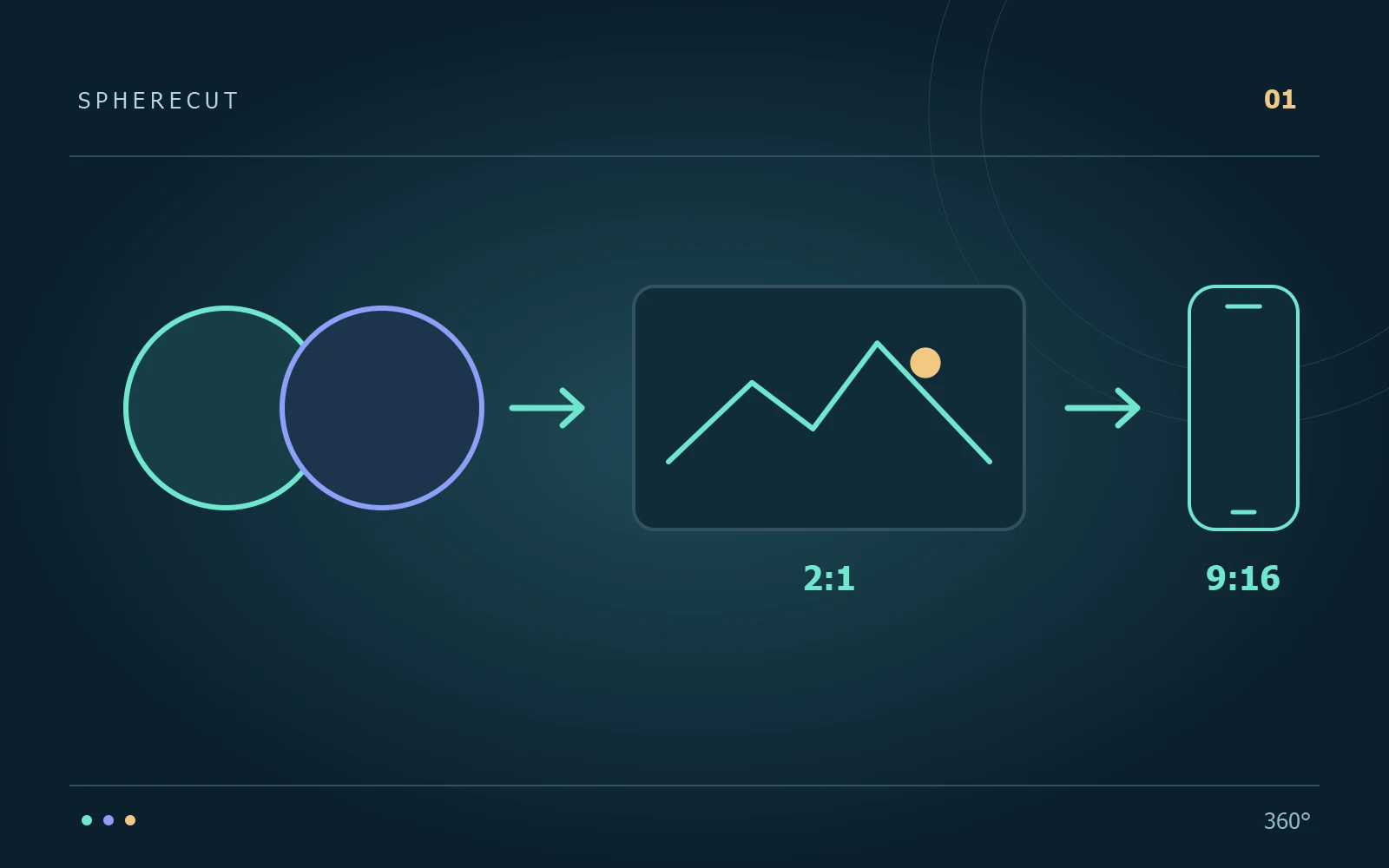
1. Treat 8K as the whole panorama
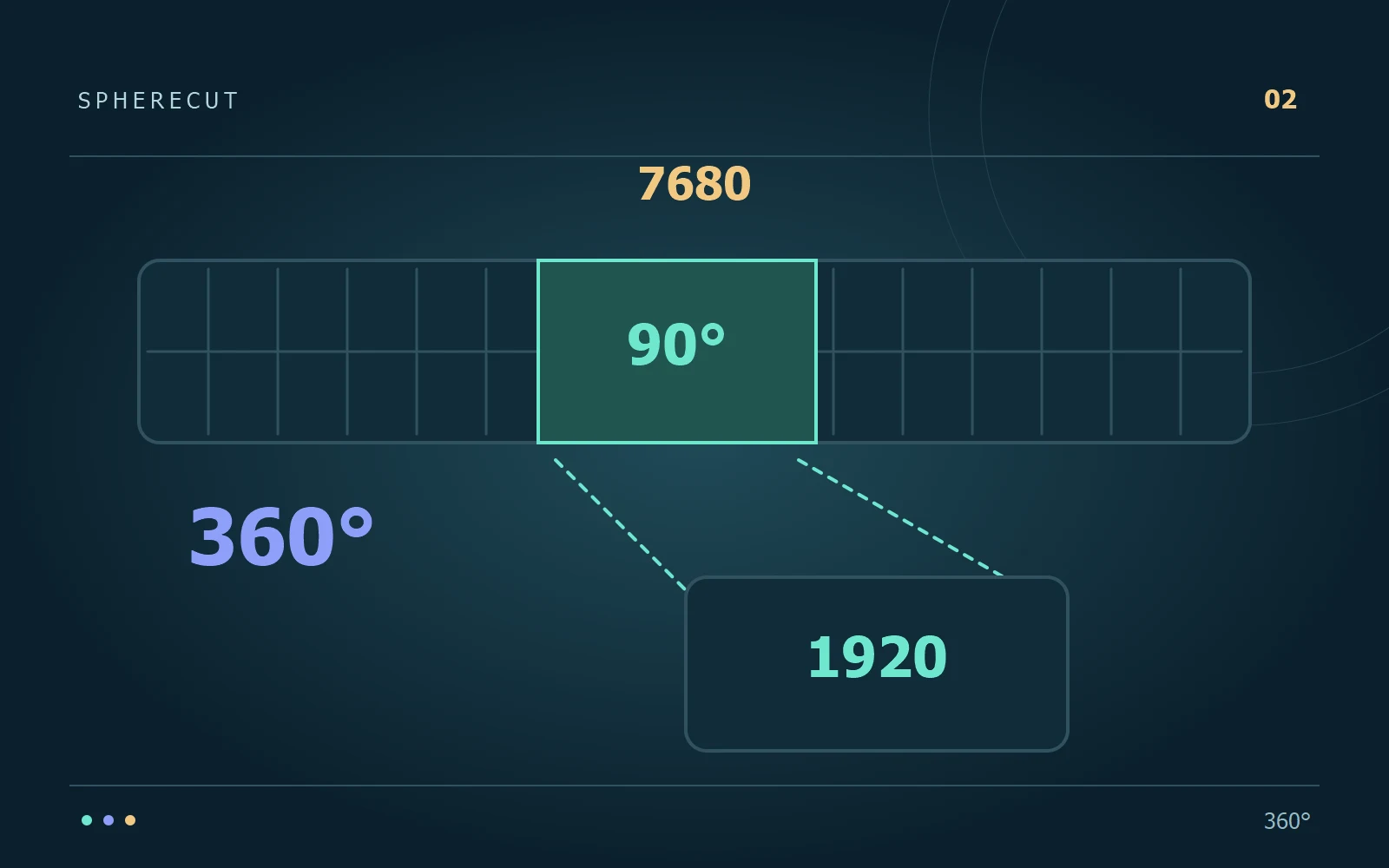
For a simple illustration, imagine an equirectangular frame 7,680 pixels wide covering 360 degrees. A horizontal 90-degree span occupies roughly 1,920 source columns. That calculation describes angular sampling, not the guaranteed resolution of a rectilinear export: projection, position, optics, stitching and compression all affect the result. A narrower view has fewer original samples available, even when you save it inside a large output frame.
2. Separate preview softness from source softness
SphereCut's Lite working copy is deliberately smaller than the original. Magnifying it makes its limited detail obvious, particularly around faces, foliage and distant buildings. Use it to decide direction, timing and composition. To assess final detail, send a short edit to the PC and render from the original. If that render is sharper than the phone preview, the proxy workflow is doing its job; the preview was not the quality master.
3. Find the tightest useful composition
Start with enough surroundings to explain the action, then gradually narrow the view. Stop when the subject is readable without excessive enlargement. A boat with water and its destination often tells a clearer story than a soft close-up of one window. Compare two versions at the size people will actually watch. Viewing a tiny preview or enlarging a paused export to several times its display size can lead to the wrong decision.
4. Choose an output size for the destination
A larger output can preserve detail that exists in the selected source region, but cannot reconstruct detail that was never captured. For a phone-oriented portrait film, test an ordinary portrait export before choosing a much larger frame. Consider upload time, storage and playback support as well as sharpness. Keep the original project so a future landscape version can use a wider part of the panorama without starting over.
5. Diagnose softness in the right order
Make a short original-quality export containing the problem moment. Compare it with the source at a similar view, rather than comparing the whole panorama with a highly enlarged crop. Then work through the likely causes:
- Check for motion blur, a dirty lens or a stitching problem already present in the source.
- Widen the chosen view and compare whether the subject remains understandable.
- Confirm that the final render came from the original on PC, not a low-resolution phone copy.
6. Capture for the edit you want
For your next recording, place the camera so the important action occupies a useful part of the sphere. Moving the camera closer, when practical and safe, changes the captured detail; digital enlargement afterward does not. Avoid placing the subject extremely close to the lens join, where stitching may struggle. Think about the future composition while recording, even though you will choose the final viewing direction later.
Try it with your own footage
Download SphereCut for Android and the Windows companion. Keep the original on your PC and bring your edit to the phone.
Read the guide ↗