1. Check the phone's actual connection
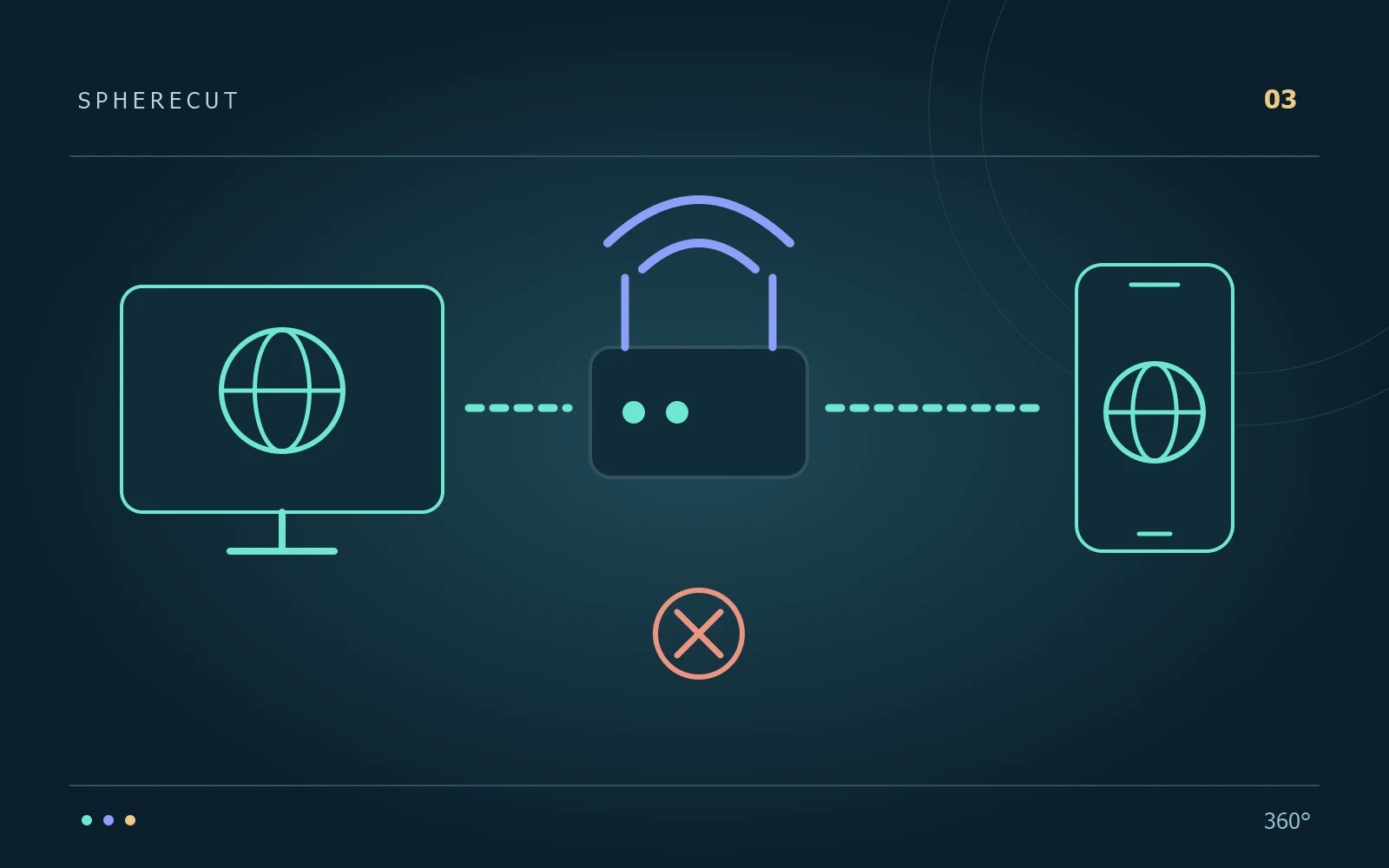
Open the phone's network settings and confirm that it is connected to your home Wi-Fi. Mobile data alone cannot reach a private address on your PC. Do not infer connectivity merely because an internet page loads. During our Galaxy A34 test, a real PC-to-phone transfer timed out while Wi-Fi was disconnected; after joining the home network, the same workflow completed. That is a useful first check, not a diagnosis for every timeout.
2. Use a network that allows devices to talk
The PC can be connected by Ethernet while the phone uses Wi-Fi on the same router. A guest network, office policy or client-isolation setting may prevent communication even when both devices have internet access. Try a trusted home network that you control. You do not need to forward a port to the public internet or publish the QR code. The transfer is intended for your local devices.
3. Confirm the PC address and session
A computer with several network adapters may offer more than one address. Choose the home-network interface in SphereCut PC before pairing. An address associated with an unused adapter or a VPN may not be reachable from the phone. Keep the companion open and use the QR code from its current session. After a network change or restart, scan the current code again rather than relying on an old screenshot.
4. Distinguish preparation from downloading
The first lightweight copy must be prepared on the PC before it can be transferred. Watch the companion's progress and wait for the ready state. If the PC is still processing the original, repeatedly rescanning will not make that stage faster. If a download starts and later fails, investigate connection stability and available phone storage. These are different problems from a QR code that the camera cannot read at all.
5. Check restrictions without disabling protection
If the address and network are correct, check whether Windows is allowing the trusted SphereCut application on the private network. A VPN or managed network can also change routing; consult its configuration or administrator. Do not solve this by permanently disabling the firewall. Keep the test small:
- Leave the PC awake and the companion's current project open.
- Receive the prepared copy while the phone is connected to the trusted local network.
- Return a short edit and confirm that it appears on the PC before rendering a long film.
6. Finish with a two-way check
Opening the video on the phone confirms only the first half of the workflow. Change a short section, send the edit back and inspect the received revision in Finish film on the PC. Render a short result from the original and open it. If asking for help, report which stage failed and whether either device changed networks. Do not share the QR code or connection token publicly; those belong to your active pairing session.
Try it with your own footage
Download SphereCut for Android and the Windows companion. Keep the original on your PC and bring your edit to the phone.
Read the guide ↗